
Set Up Your Telegram Bot
You don't have to write any code for this. Actually, you don't even have to use your computer! Just go to the Telegram app on your device and complete these 4 simple steps:
Find the BotFather
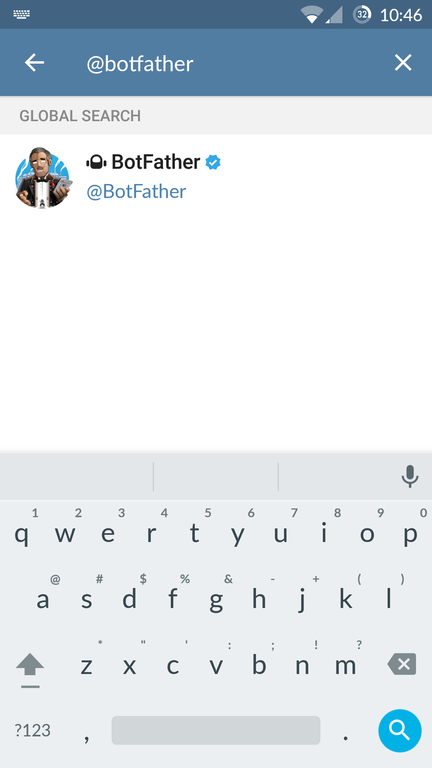
Find the Telegram bot named "@BotFather" — he will help you with creating and managing your bot. BotFather is the official Telegram bot for creating and configuring new bots. Simply search for "BotFather" in the Telegram search bar and select the verified account with the blue checkmark.
View Available Commands
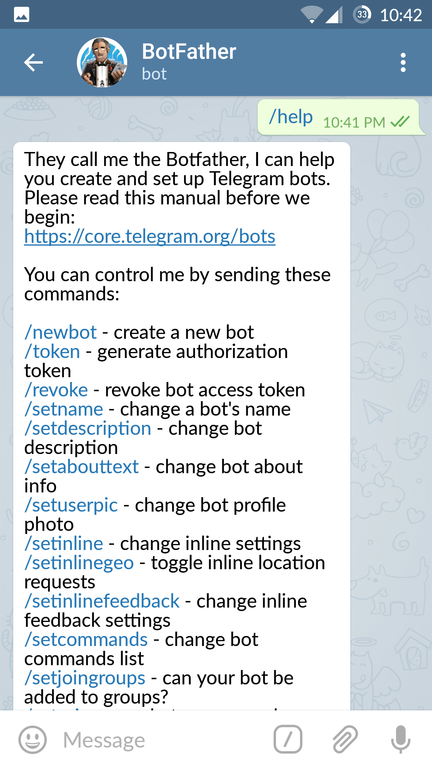
Type "/help" and you will see all possible commands that the BotFather can operate. This gives you an overview of everything you can do — from creating and deleting bots to setting descriptions, profile pictures, and inline mode.
Create a New Bot
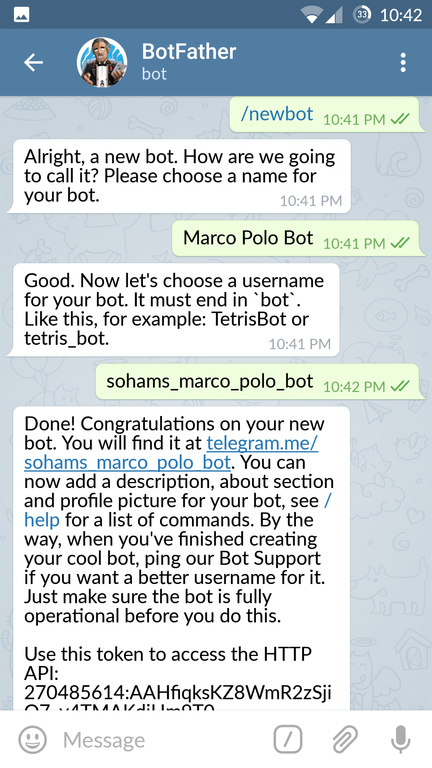
To create a new bot, type "/newbot" or click on it. Follow the instructions BotFather provides and create a new name for your bot. If you are making a bot only for experimentation, keep in mind that the username has to be unique — you can namespace your bot by placing your name before it in its username. By the way, the bot's screen name (display name) can be anything you like.
Tip: For security notification bots, use a descriptive name like "MySite Security Alerts" so you can easily identify the source of notifications on your phone.
Get Your API Token
Congratulations! You've just created your Telegram bot. You will see a new API token generated for it. In the example above, it looks like this:
270485614:AAHfiqksKZ8WmR2zSjiQ7_v4TMAKdiHm9T0
Copy your API token to the plugin. Paste this token into the corresponding field in your SiteGuarding extension or security dashboard settings to enable Telegram notifications for your website.
Security Warning: Keep your API token private. Anyone with access to your bot token can control your bot and send messages through it. Never share it publicly or commit it to version control. If your token is compromised, use the /revoke command in BotFather to generate a new one immediately.