Setup Guide

Google Indexing API Setup

Complete step-by-step guide to configure Google Indexing API for instant website indexing. Set up your Google Cloud Platform project, create a service account, and connect it to Google Search Console for faster crawling and indexing of your web pages.

1

Steps to Create an Indexing API Project

1.1. Go to Google Cloud Platform

Start by heading over to the Google Cloud Platform directly from here. This link will take you to the API enablement flow with the Indexing API pre-selected, saving you time in navigating through the console. This is the first step in setting up instant indexing for your website — an essential part of maintaining strong SEO performance and ensuring your content is discovered quickly by search engines.

1.2. Create a New Project

Ensure that you're creating a new Indexing API project by clicking the Create Project option.
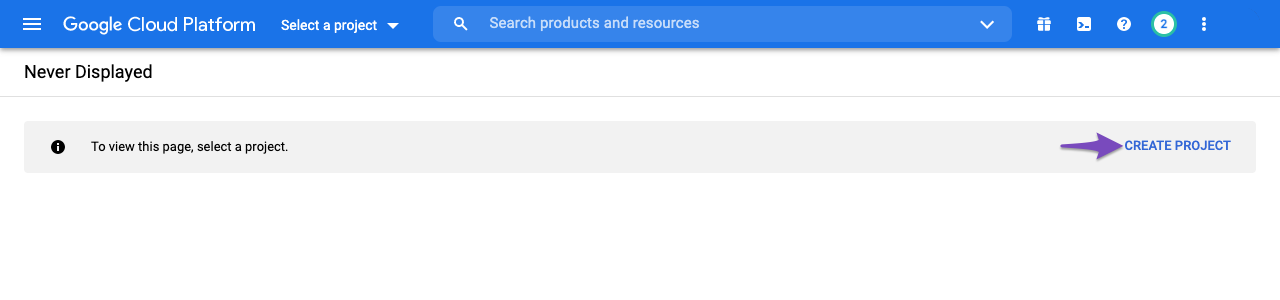
Create New Project in Google Cloud Platform

Alternatively, you can click the Select a project drop-down and choose New Project from the popup that appears on the screen.
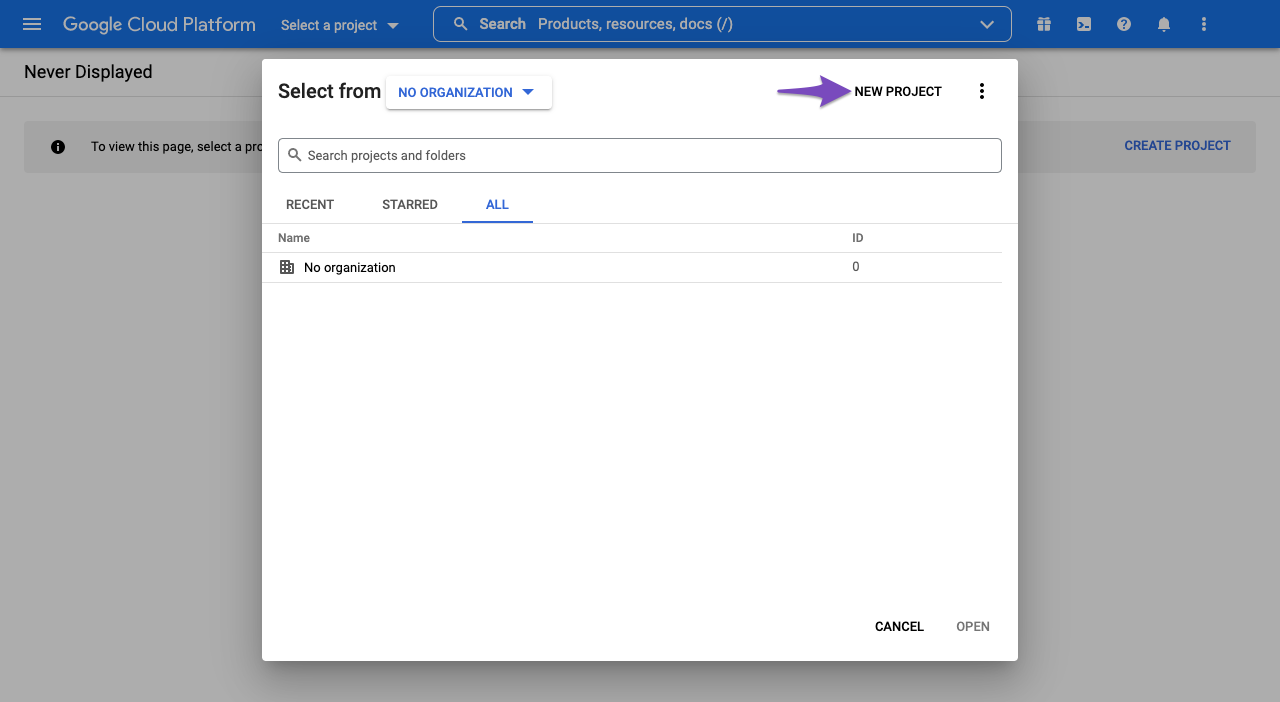
Creating New Project in Google Cloud Platform

In the next screen, enter a project name that you can recognize later. And then click Create.
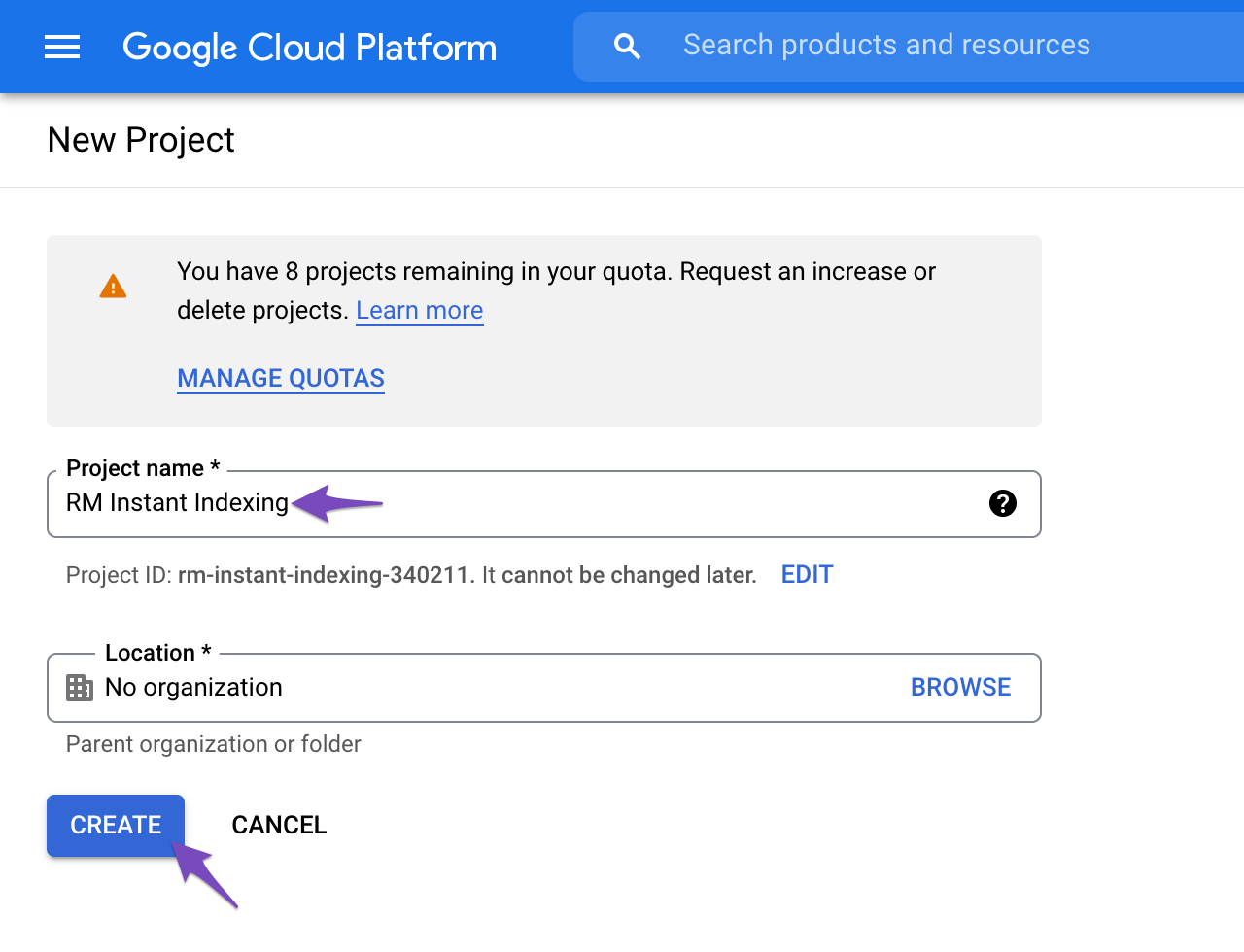
New Project for Instant Indexing API

Tip: Use a descriptive project name such as "Website Indexing API" or "My Site Indexing" so you can easily identify it later in your Google Cloud console.

1.3. Enable Access to API

Once you create the project, you need to enable the project to access the API. In the next step, you will see a screen as shown below. Confirm that the selected project is the one you've created for the Instant Indexing API; otherwise, select the drop-down at the top to change the project. Once you've selected the correct project, click Next.
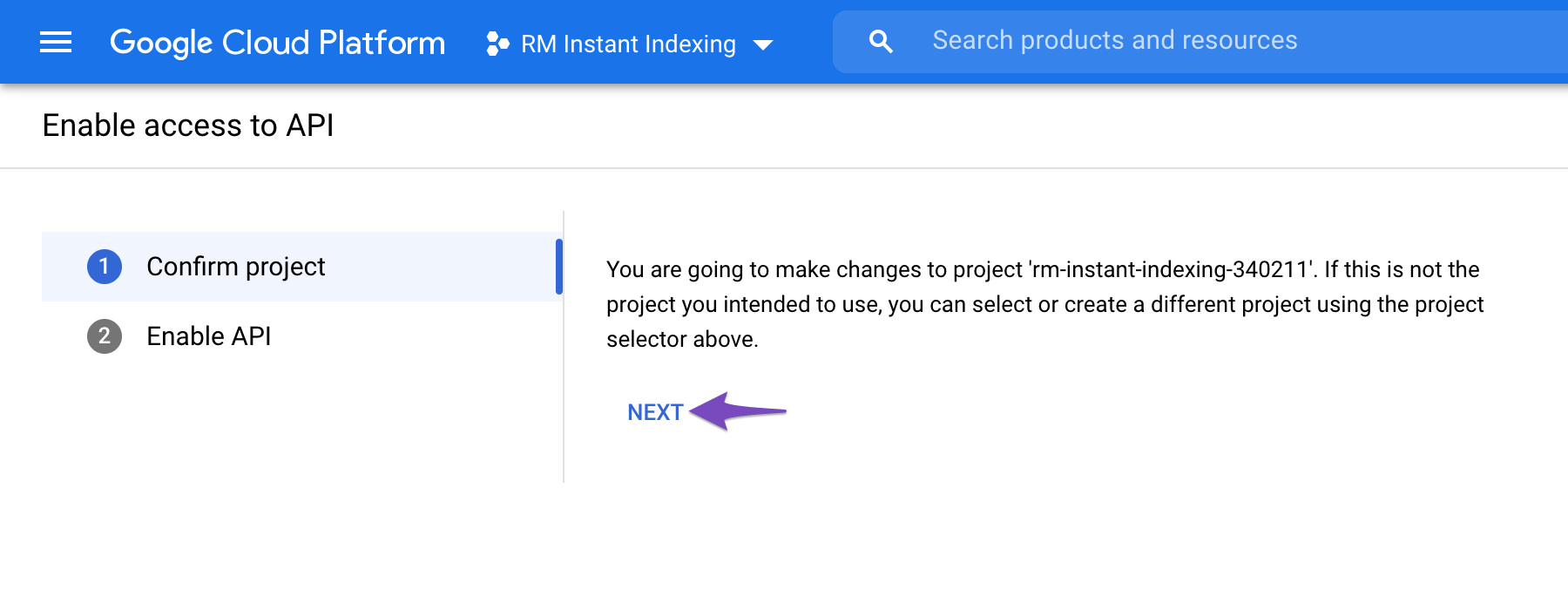
Enable access to API - Confirm Project

In the next step, click the Enable option to enable the project to access the Instant Indexing API.
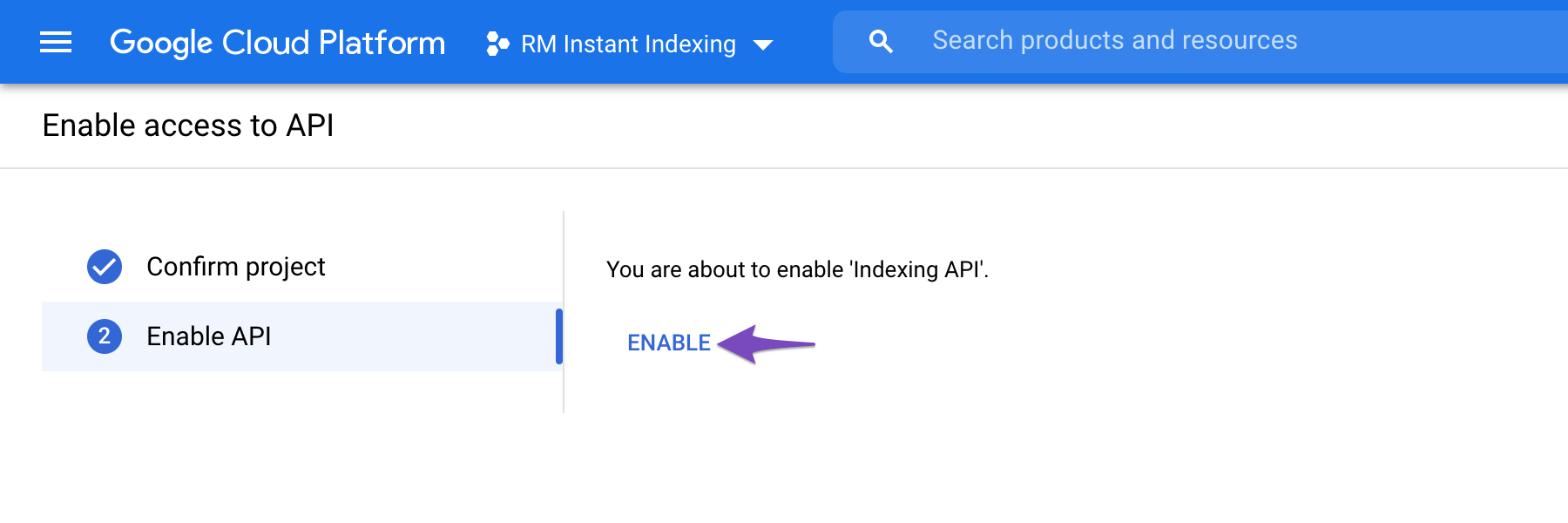
Enable Instant Indexing API

Once you've enabled it, you can close this tab. Your Google Cloud project is now configured to use the Indexing API.
2

Steps to Create a Service Account

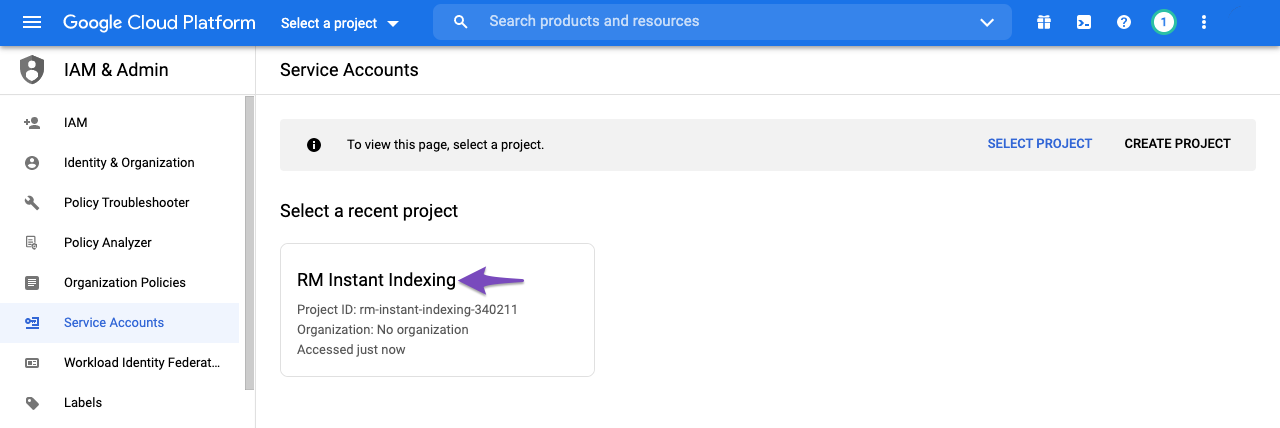
Next, you need to create a service account by opening the service accounts page. A service account is a special type of Google account that allows applications to authenticate and interact with Google APIs programmatically — without requiring user intervention.

2.1. Select the Project

You will first be prompted to select the API project you wish to create this service account in (the one created in the previous step).

Select project to create service account

2.2. Create Service Account

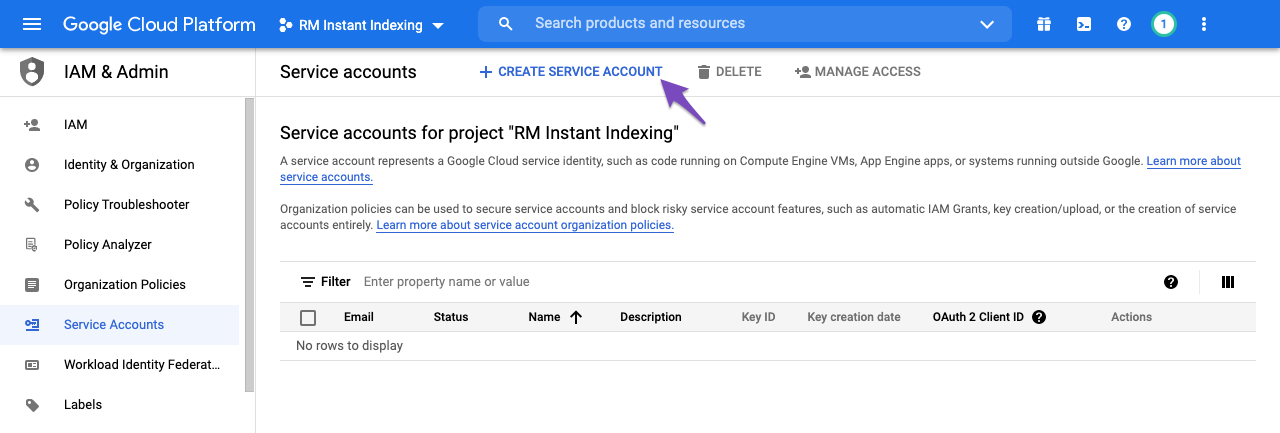
After selecting the project you wish to create a service account for, you'll be taken to the following page, where you simply need to click the Create Service Account button highlighted below:

Create Service Account

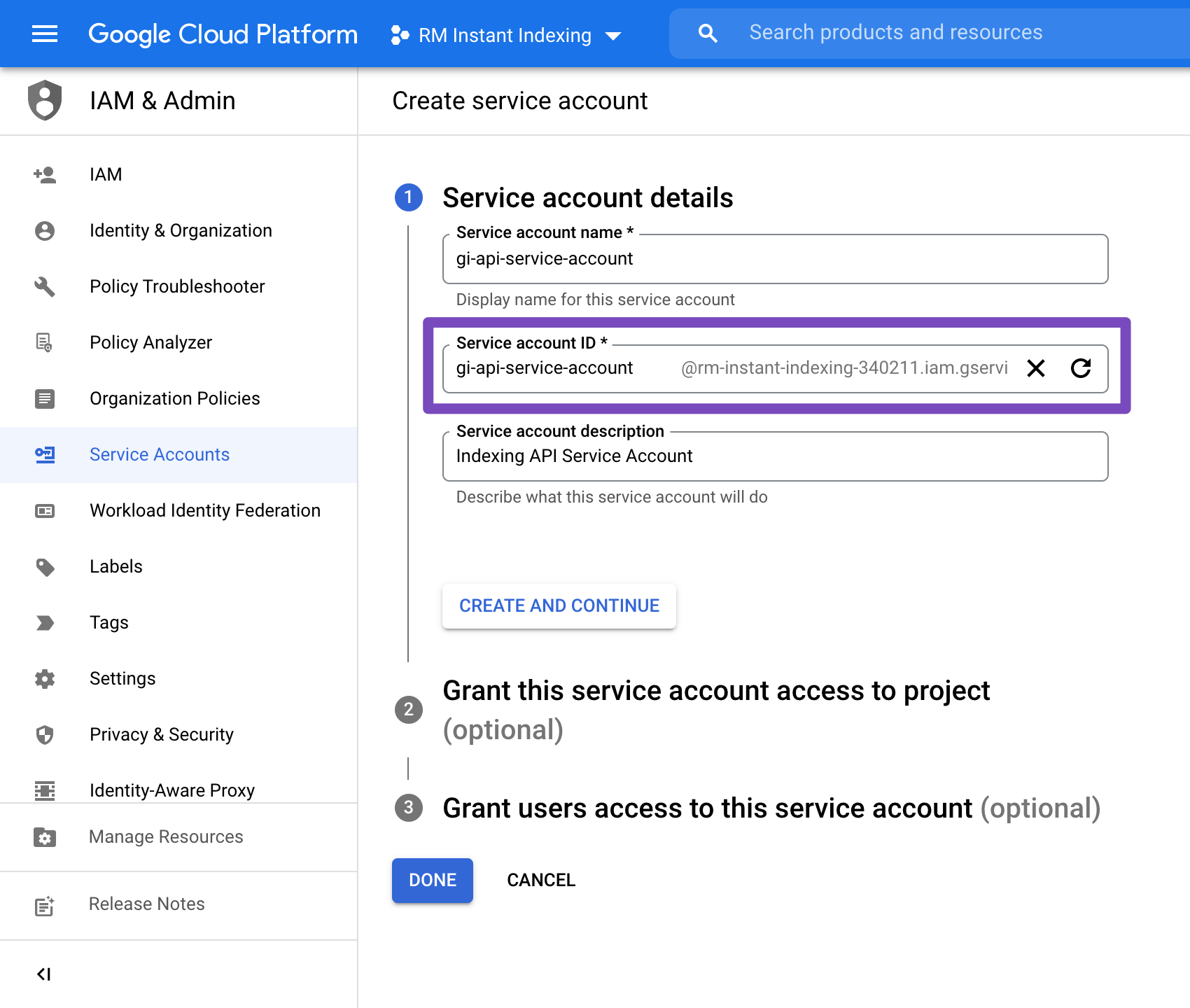
On the Create service account screen, enter a name and description for the newly created service account.

Select and copy the whole Service Account ID (the one that looks like an email address) because you will need it later. Then, click on the Done button at the bottom:

Instant Indexing Service Account Information

Important: Make sure to copy and save the Service Account ID (email address format). You will need this in Step 3 to add it as an owner in Google Search Console.

2.3. Manage Keys for Service Account

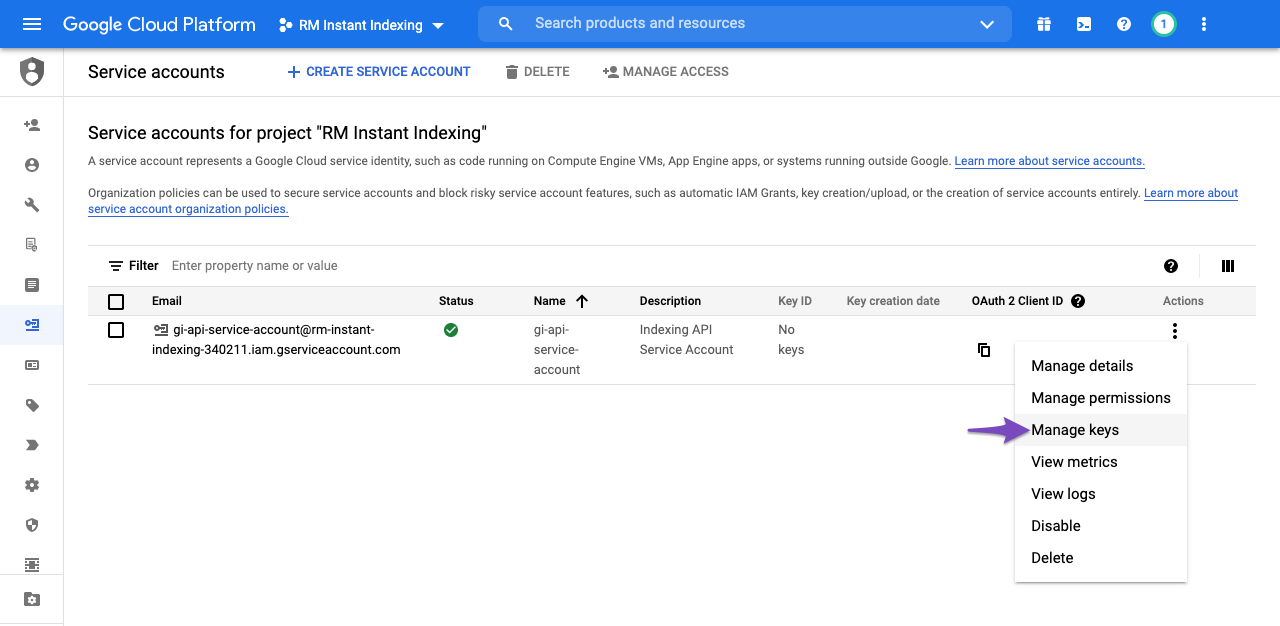
You will then be able to download the file that contains your API key. To do so, simply click the three vertical dots in the Actions column, and then select Manage keys as shown below:

Manage Keys - Google Service Account

2.4. Create New JSON Key for Service Account

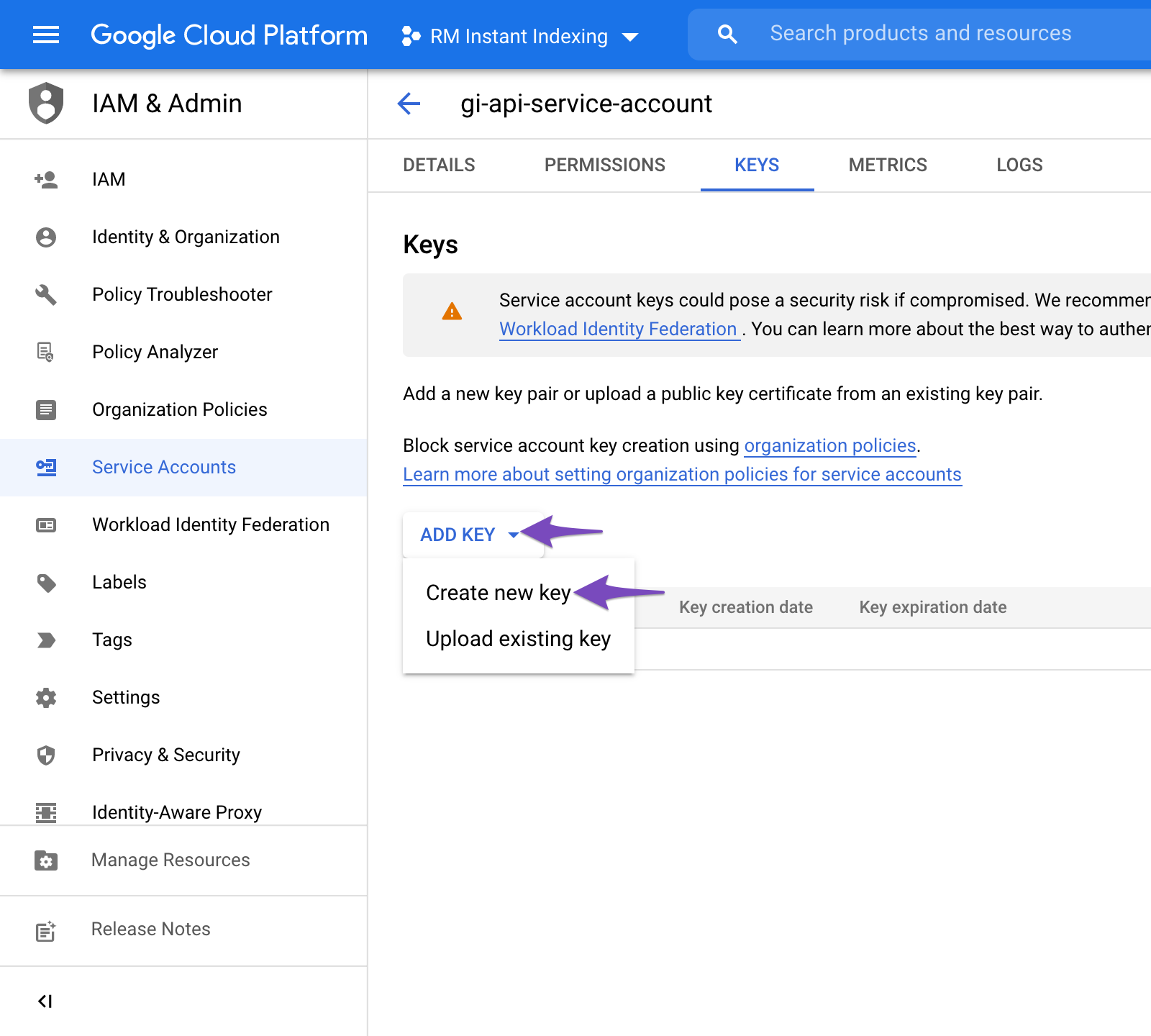
You will then be taken to the following page where you can click Add Key and then select the Create new key option, as shown below:

Create new key for Service account

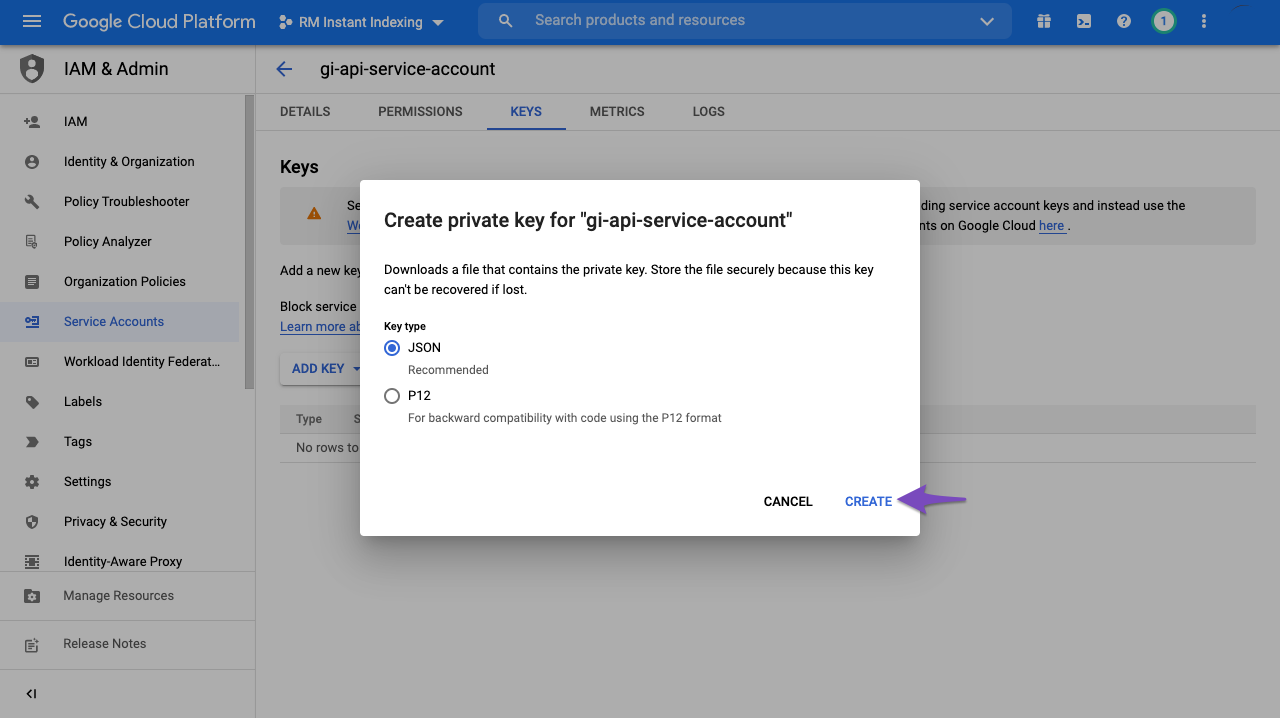
Choose the default JSON format when prompted in the overlay, and click Create:

Create JSON Key for Service Account

Upon clicking Create, the .json file will be automatically downloaded in your browser, meaning you've successfully created the API key and can proceed to the next step.

Security Note: Keep your JSON key file secure. This file provides API access to your Google project. Do not share it publicly or commit it to version control repositories. Store it in a safe location, as it is required for authenticating API requests. If your website handles sensitive data, consider combining this setup with enterprise website security measures to protect your credentials.

3

Add the Service Account as an Owner of Your Google Search Console Property

To do this, you'll need to register and verify your website with the Google Search Console (if you haven't done so already), which is super easy: just follow the recommended steps to verify ownership of your property. Verifying your property in Search Console is also essential for security monitoring — it allows you to receive notifications about security issues, manual actions, and indexing problems that may affect your site's visibility.

3.1. Navigate to Users and Permissions in Google Search Console Settings

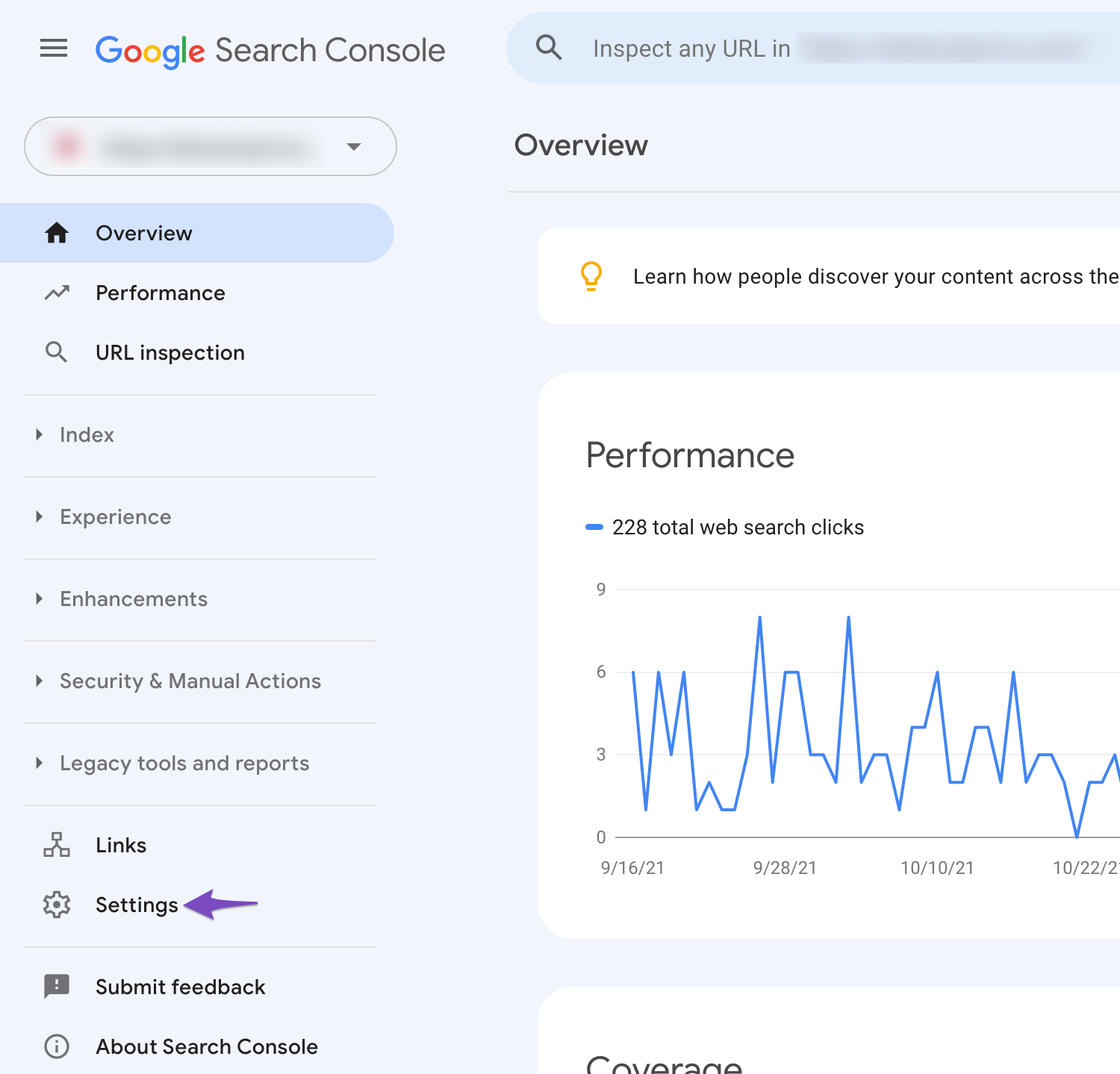
After verifying your property, open the Google Search Console, select your property on the left (if prompted), and then click on Settings near the bottom:

Open settings in Google Search Console

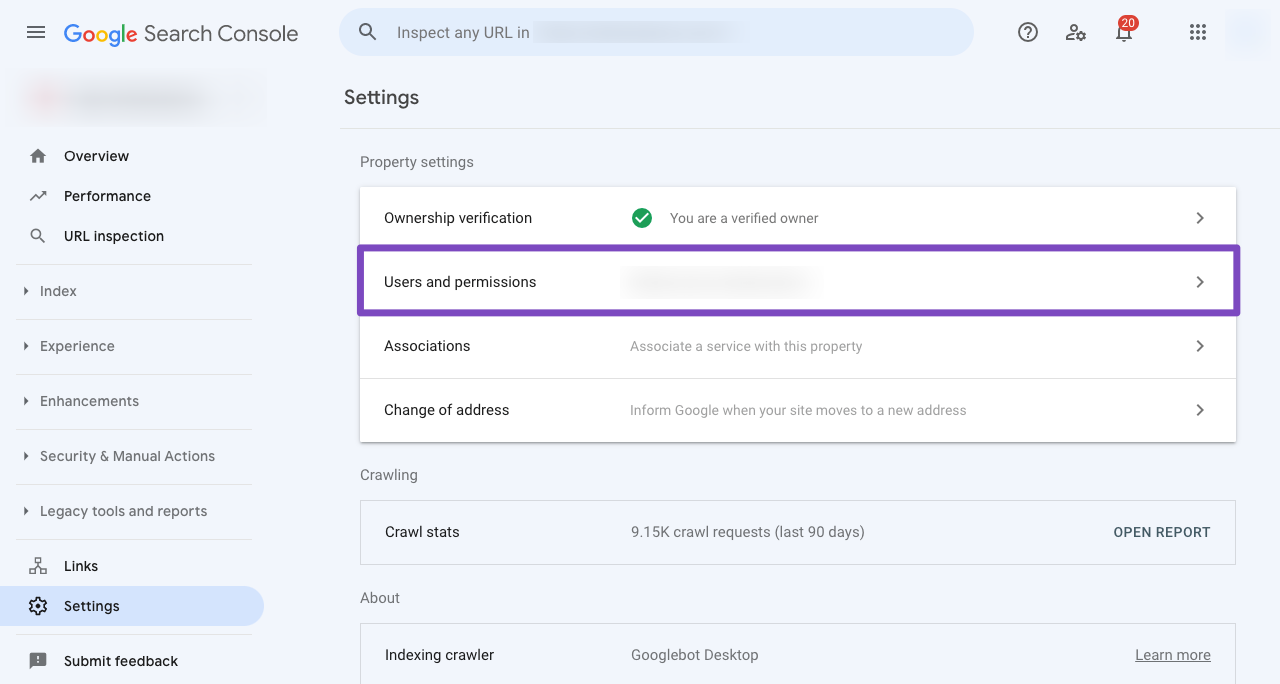
Click on Users and Permissions:

Choose Users and Permissions in Google Search Console settings

3.2. Add User to Your Search Console Property

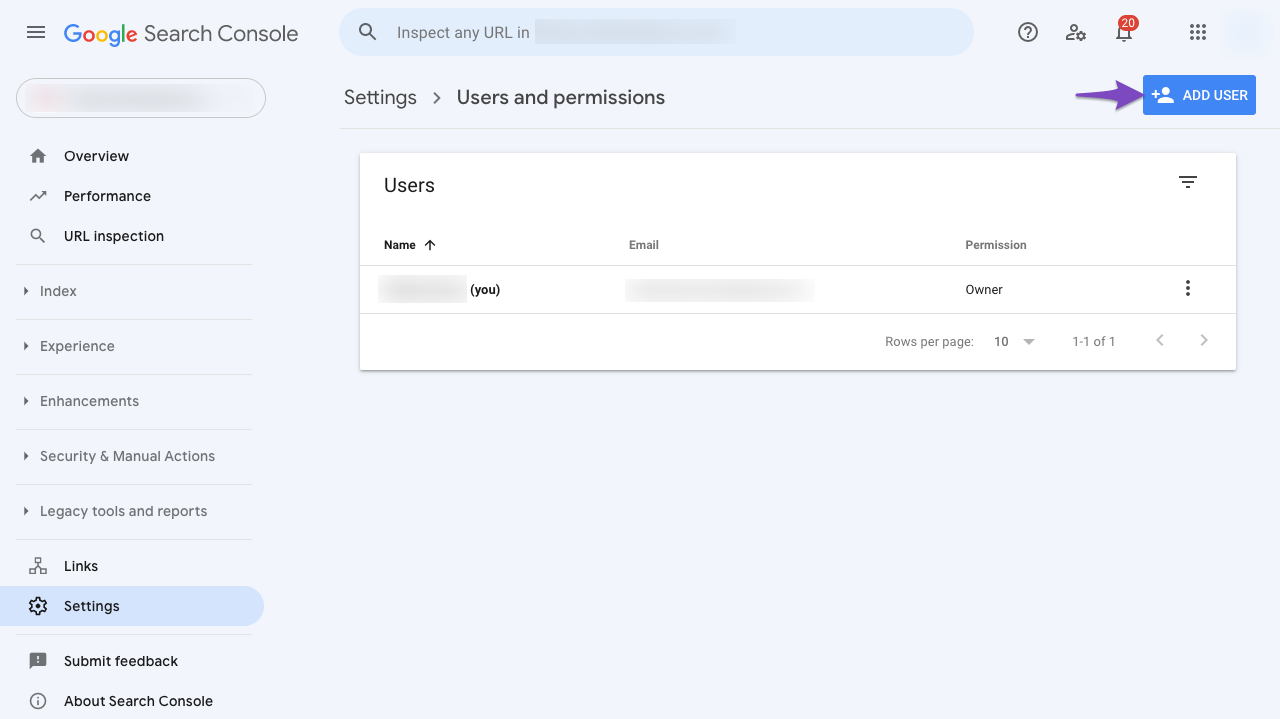
Click on the three dots next to your account, and then click on Add User.

Add user in Users and Permissions

3.3. Delegate Service Account ID as Owner

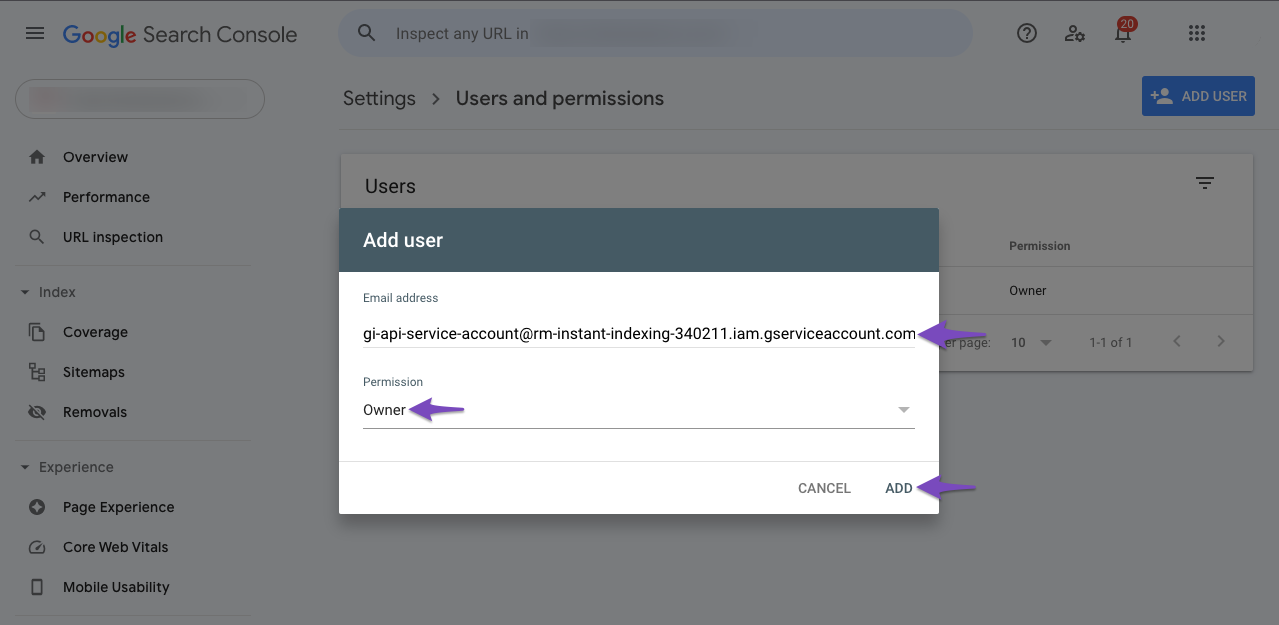
A popup will now appear. Enter the Service Account ID (the one you copied out earlier) in the Email address field. Ensure that you've provided Owner level Permission, and then click Add.

Add user as owner in Google Search Console

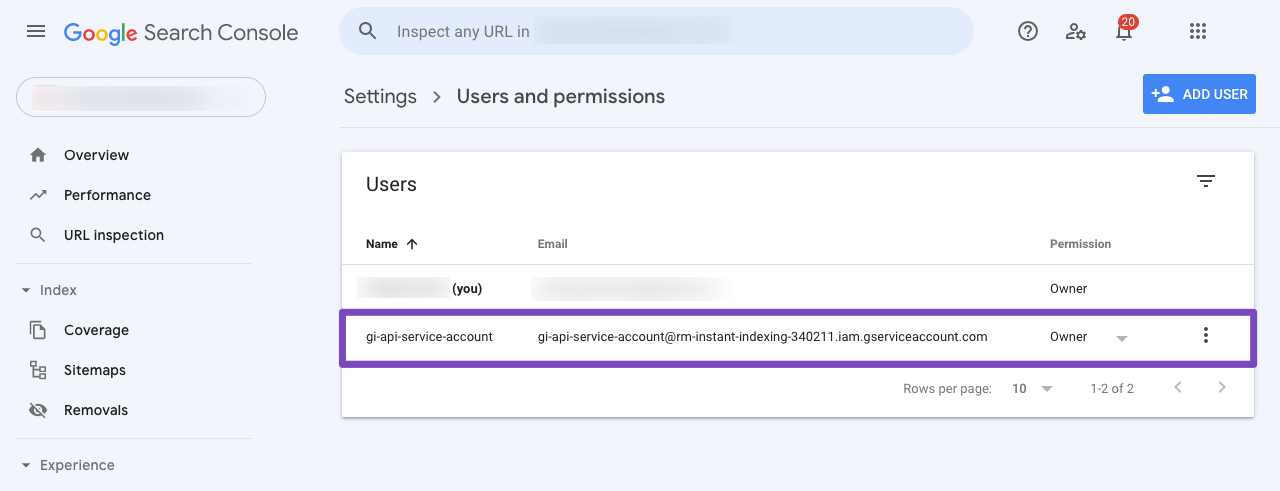
Now in a few moments, you should see the Service account listed as a new Owner.

Google Service account added to Google Search Console users

Pro Tip: You can use a single Project, Service Account, and JSON API Key across multiple sites — just make sure that the Service Account is added as Owner for all the sites in the Search Console. This is especially useful if you manage multiple websites that require advanced web protection and need consistent indexing across all properties.

4

Insert Downloaded Google API JSON Key into Dashboard or Plugin

Copy or upload the Google API JSON Key where it's required — whether that's your CMS dashboard, a WordPress plugin (such as Instant Indexing for Google), or a custom API integration script. Once the JSON key is in place, your application will be able to send indexing requests directly to Google, ensuring that new and updated pages are crawled and indexed within minutes rather than days.

This is the final step in the setup process. After inserting your JSON key, your website will be connected to the Google Indexing API, allowing you to programmatically request indexing for new URLs, updated content, and removed pages. This is particularly valuable for websites that publish time-sensitive content, e-commerce sites with frequently changing product listings, or any business that requires immediate search visibility after SEO recovery after a hack or malware removal.

Done! Your Google Indexing API is now fully configured. New and updated pages on your website will be indexed by Google much faster than relying on traditional crawling alone.

Why Google Indexing API Matters for Your Website

Faster indexing means faster visibility in search results, which directly impacts your traffic and revenue.

Instant Indexing

Submit URLs directly to Google for indexing within minutes, instead of waiting for the traditional crawl cycle which can take days or even weeks.

SEO Recovery

After a security incident or malware removal, use the API to quickly re-index cleaned pages and restore your search rankings and visibility.

Content Freshness

Ensure that Google always has the latest version of your pages indexed — critical for news sites, e-commerce catalogs, and job boards.

Frequently Asked Questions

Common questions about setting up and using the Google Indexing API.

What is the Google Indexing API?

The Google Indexing API allows website owners to notify Google directly when pages are added, updated, or removed. Instead of waiting for Google's crawler to discover changes naturally, you can submit URLs programmatically for faster indexing and search visibility.

Is the Google Indexing API free to use?

Yes, the Google Indexing API is free to use. Google provides a daily quota of up to 200 indexing requests per day by default. For most websites, this quota is more than sufficient. If you need a higher limit, you can request a quota increase through the Google Cloud Console.

Can I use one Service Account for multiple websites?

Yes, you can use a single Project, Service Account, and JSON API Key across multiple sites. Just make sure that the Service Account is added as an Owner for all the sites in the Google Search Console. This simplifies management if you oversee multiple web properties.

How does this help with SEO recovery after a website hack?

After a website has been compromised and cleaned through malware removal services, the Indexing API allows you to immediately request Google to re-crawl and re-index your cleaned pages. This accelerates the removal of malware warnings from search results and helps restore your website's search rankings faster than waiting for natural recrawling. SiteGuarding's SEO Recovery After Hack service includes this as part of the recovery process.

What should I do if I lose my JSON key file?

If you lose your JSON key file, go back to the Google Cloud Console, navigate to your Service Account, and create a new key (Step 2.4 above). You can delete the old key and generate a new one. Make sure to update the new key in your dashboard or plugin. For enterprise website security best practices, store your key files in a secure, encrypted location.

Need Help Setting Up Google Indexing API?

Our team can configure the Google Indexing API for your website, set up instant indexing, and help you recover search rankings after a security incident.

Trusted Since 2008
Instant Indexing
24/7 Support
SEO Recovery Experts
Live Chat Support
Our website uses cookies, which help us to improve our site and enables us to deliver the best possible service and customer experience. See our policy Accept